

Login
1. Login from your browser using OAuth2 (default)
1. Login from your browser using OAuth2 (default)
To log in to your Lightdash instance, run the following command:where 
{{ lightdash_domain }} is the address for your running Lightdash instance. For example Lightdash cloud users in the US would type lightdash login https://app.lightdash.cloud if you’re in Europe you’d typelightdash login https://eu1.lightdash.cloud.This will open a new tab in your default browser. Log in to your Lightdash account (if you’re not already logged in), then authorize the lightdash-cli client.Once authorized, you’ll be logged in and ready to use the CLI.2. (Deprecated) Email + password authentication
2. (Deprecated) Email + password authentication
3. If you use single sign-on (SSO) in the browser, login with a personal access token.
3. If you use single sign-on (SSO) in the browser, login with a personal access token.
First, you’ll need to create a new personal access token in the UI by going to Settings > Personal Access Tokens. You can’t use an existing personal access token! You have to create a new one just for yourself.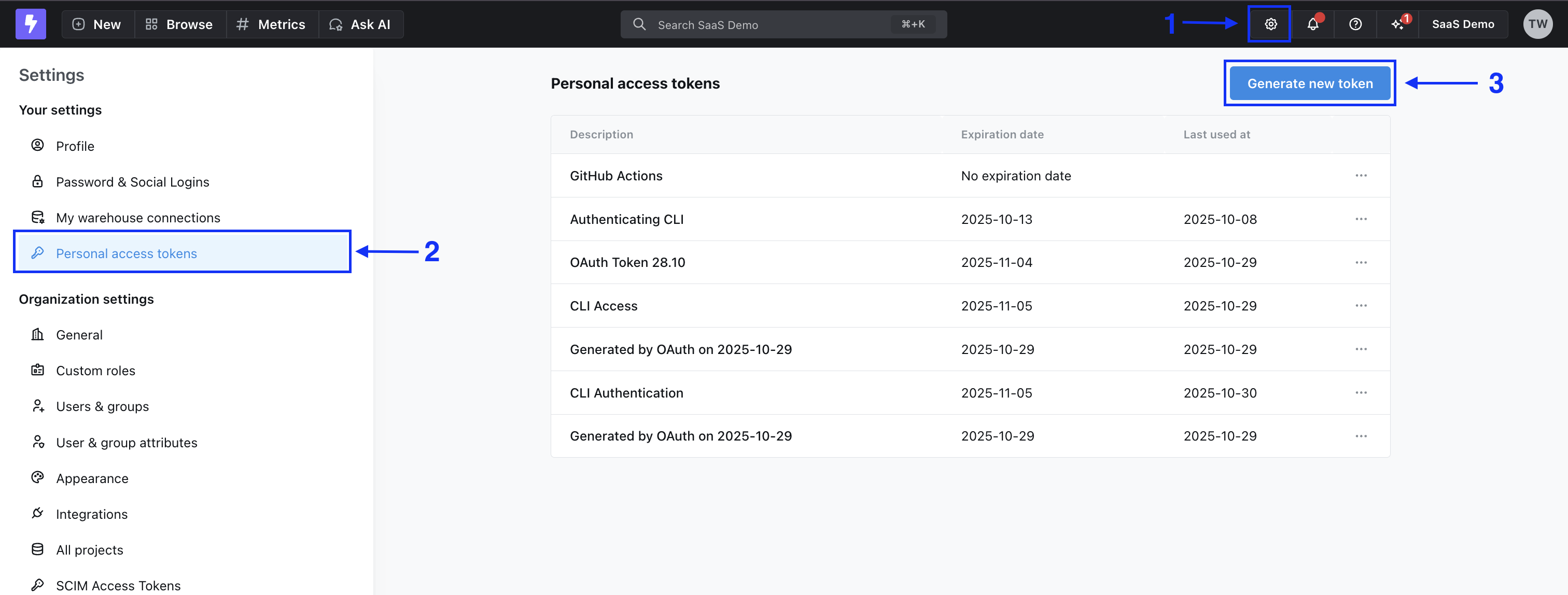
https://my-lightdash.domain.com is the address for your running Lightdash instance. For example Lightdash cloud users in the US would type lightdash login https://app.lightdash.cloud if you’re in Europe you’d typelightdash login https://eu1.lightdash.cloud.4. If you're running in a CI/CD pipeline, login with environment variables
4. If you're running in a CI/CD pipeline, login with environment variables
You can use the following environment variables to authenticate yourself on each command:Where
- LIGHTDASH_API_KEY a personal access token you can generate in the app under the user settings
- LIGHTDASH_URL address for your running Lightdash instance
-
LIGHTDASH_PROXY_AUTHORIZATION if your Lightdash instance is behind a proxy like Cloud IAP you can set here
Proxy-Authenticationheader value
{{ lightdash_domain }} is your domain. For Lightdash Cloud users use https://app.lightdash.cloudSet active project
When you login you’ll be asked to set an active project. Your active project is just the one that you’re working on/developing in. Your organization might just have one project, so that makes your decision easy! You can change your active project by running:LIGHTDASH_PROJECT environment variable to indicate what project UUID the command should use.
Example: